
Phoenix Ember is not your safeguarding system — schools keep CPOMS, MyConcern or their own process for that. What it is: the early-signal layer that watches assessment scores, daily check-ins and intervention delivery for patterns worth a look, and routes them to the right adult automatically.
- 01
A bell icon, not an inbox to trawl
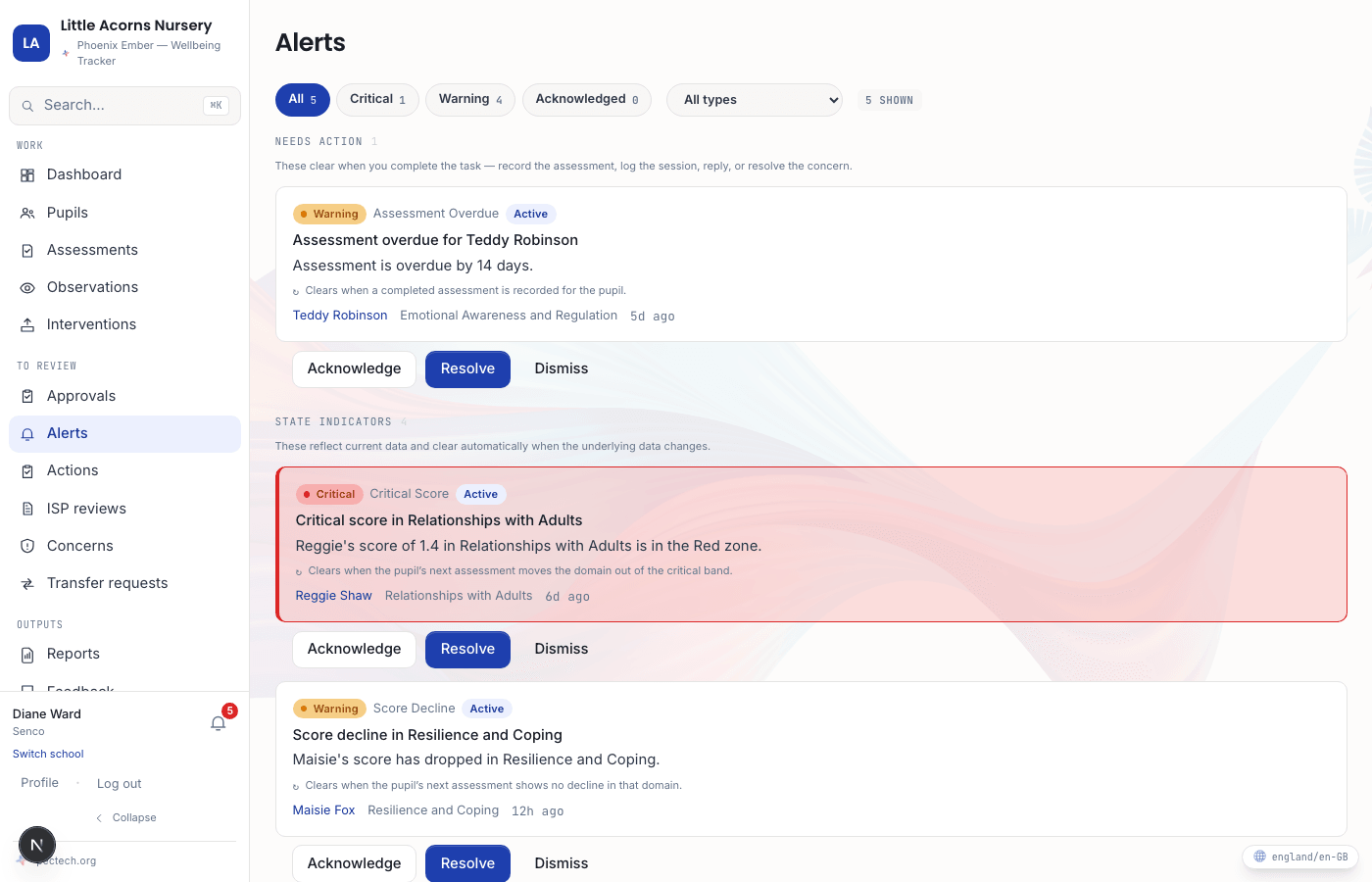
A number on the bell icon in the navigation shows how many alerts are waiting. Open it to see every active and acknowledged alert — SENCOs and senior leaders see the whole school's alerts; teachers and teaching assistants see alerts for the pupils they work with.
Alerts are ordered with the most urgent at the top — critical alerts before warnings, and the most recent within each.
- 02
What triggers an alert
A handful of patterns raise an alert automatically: a domain score dropping between assessments, a score landing in the Red zone, an assessment overdue by a week or more, an intervention that has gone quiet for longer than its expected gap, a support plan review date approaching or overdue, and a sustained low-mood pattern across daily check-ins. A rising score raises a positive alert too — not everything the system flags is bad news.
- 03
Warning vs critical — who gets told
Warning alerts go to the pupil's key adult. Critical alerts — a Red-zone score, for instance — go to the key adult and the whole SENCO/senior-leadership team at once, so nothing serious waits on one person seeing their inbox.
- 04
Open it, find the pupil, act
Selecting an alert takes you straight to the pupil it's about — their current scores, interventions and support plan all one click away, so you can decide what to do without hunting for context first.
- 05
Acknowledge or resolve
Mark an alert as read once you've seen it — that only affects your own view, not anyone else who also received it. Many alerts clear themselves automatically once the underlying pattern reverses (a score recovers, a check-in mood lifts); others need you to resolve or dismiss them once you've dealt with the situation.